Your Windows computer keeps a detailed record of every app you install and uninstall, often without you realizing it. This hidden log stretches back years, storing timestamps and version data that reveal more than you'd expect about your usage patterns, troubleshooting history, and even potential security risks. Whether you're a casual user or a tech enthusiast, understanding this digital diary can help you optimize performance, protect your privacy, and solve mysterious glitches. Here are eight eye-opening facts about what Windows really knows—and how you can take control.
1. The Log Is Older Than You Think
Windows has been quietly tracking app installations and removals since the early days of Windows 7, and possibly even earlier. The records live in the Windows Event Log under Applications and Services Logs, specifically in Microsoft-Windows-AppLocker/EXE and DLL and Microsoft-Windows-PowerShell/Operational if PowerShell installs were involved. These logs can stretch back years, preserving a timeline of every software change—even after you've deleted the program. For privacy-conscious users, this means your digital footprint is larger than assumed, but it also provides a valuable forensic tool if your system acts up.
2. It Captures More Than Just Names and Dates
Beyond simply noting that Spotify or Adobe Photoshop was installed, Windows logs the exact version number, publisher, and sometimes the download source. For uninstalls, it records the removal method—whether via the Control Panel, a third-party uninstaller, or a manual deletion. This granularity helps diagnose issues: if a game crashes after an update, the log may show the previous version that worked, allowing you to backtrack. It also reveals if an app was installed silently or through a bundle, which can flag potentially unwanted software (PUPs).
3. You Can Access It Without Third-Party Tools
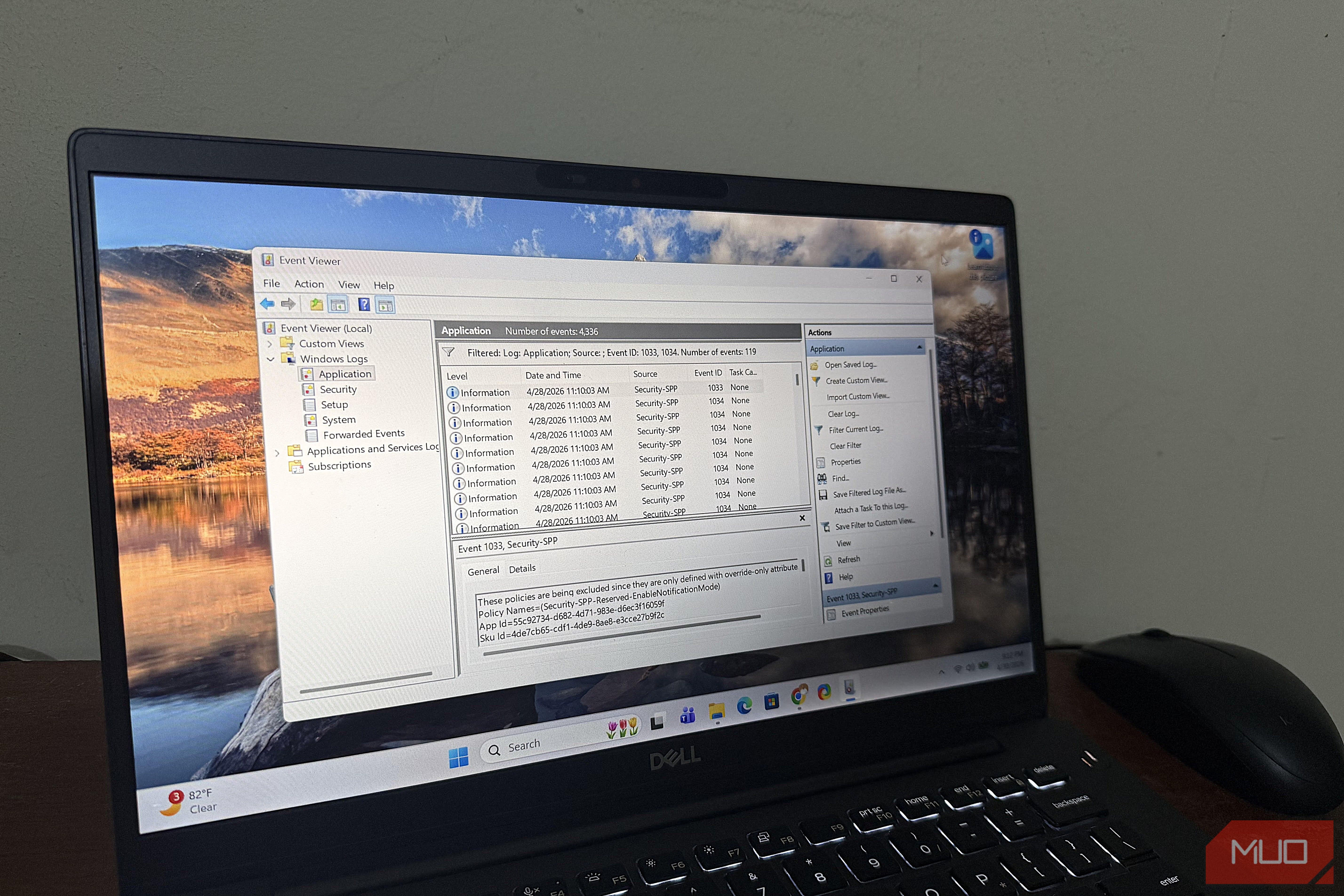
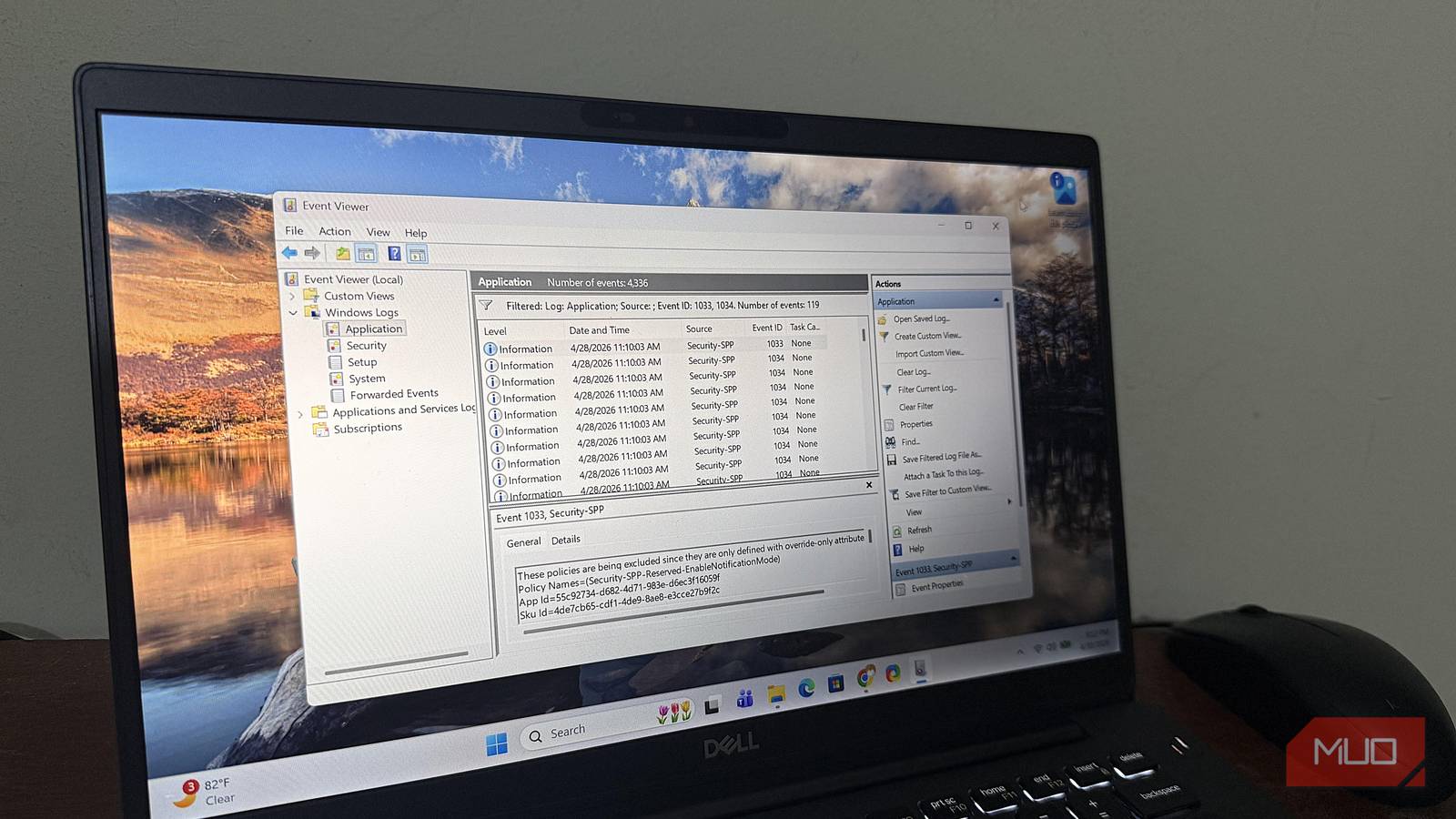
You don't need special software to peek at this history. Open Event Viewer by typing eventvwr in the Start menu. Navigate to Windows Logs > Application, then filter by event ID series: for installs, look for 11724 (MSI installations) or 1033 (Windows Installer). For uninstalls, event IDs 11725 and 1034 are your clues. Alternatively, use PowerShell with the command Get-WinEvent -FilterHashTable @{LogName='Application'; ID=11724,11725} to generate a clean list. This method requires no extra downloads and works on Windows 10 and 11.
4. It Also Lives in the Registry (and Stays There)
Even if you clear Event Viewer logs, traces of app history linger in the Windows Registry. Keys like HKEY_LOCAL_MACHINE\SOFTWARE\Microsoft\Windows\CurrentVersion\Uninstall and HKEY_CURRENT_USER\SOFTWARE\Microsoft\Windows\CurrentVersion\Uninstall keep a record of every registered application, including uninstalled ones (often with a DisplayName still present). This is why some uninstallers fail to clean up completely, leaving orphaned entries that can confuse system optimizers. Knowing this helps advanced users manually remove junk entries using regedit, but caution is essential—deleting the wrong key can break other software.
5. The Log Can Expose Unwanted or Malicious Apps
If your computer suddenly slows down or shows pop-ups, the app history log can be a first clue. Check for installations that occurred right before the trouble started—especially apps from unknown publishers or those with weird names. Because the log includes timestamps with second-level precision, you can correlate them with specific events like a browser redirect or a ransomware prompt. Security professionals use this data during incident response, but even home users can spot suspicious activity by reviewing recent installs. It's like having a silent watchdog for your system's software hygiene.
6. It's Part of Windows Diagnostic Data—Even If You Turn Off Telemetry
Microsoft collects some app install/uninstall data as part of its basic diagnostic telemetry. Even if you've set Diagnostic Data to Basic or turned off Improve Inking & Typing, the local logs on your PC remain. The company states that this information helps improve app compatibility and Windows Update reliability. However, the same data is also available to third-party utilities (with your permission) and can be accessed by any program running with administrator rights. Understanding this helps you decide whether to disable certain services or use a firewall to block unwanted telemetry outbound traffic.
7. It Can Help You Reinstall or Restore Apps Faster
When you need to set up a new PC or reinstall Windows, the app history log provides a perfect checklist. By exporting the list of previously installed applications—using PowerShell commands like Get-ItemProperty HKLM:\Software\Wow6432Node\Microsoft\Windows\CurrentVersion\Uninstall\* | Select-Object DisplayName, Publisher, InstallDate—you can see exactly what you had before. This is especially useful if you forgot to back up your app list. Some enthusiasts even automate reinstallation scripts based on this data, saving hours compared to manually remembering every tool you use.
8. You Can (Partly) Clear the Log—But It's Tricky
To erase your app installation history, start by clearing Event Viewer logs: right-click Windows Logs > Application and select Clear Log. For registry traces, you must manually delete entries under the Uninstall keys. However, some info may still persist in Windows Defender logs or System Restore points. The most thorough method is to use the Reset this PC feature with the Remove everything option, but that's overkill for most people. Remember: completely scrubbing the data is nearly impossible without reinstallation, so weigh your privacy needs against convenience.
Your Windows machine has been keeping a detailed diary of your software life—and now you know exactly where to find it and how to use it. From diagnosing crashes to guarding against malware, this hidden feature is more ally than enemy. Start by checking your own logs today, and you might uncover insights that make your computer run smoother and safer. Knowledge is power, especially when it comes to the silent records your OS keeps ticking away in the background.