Introduction
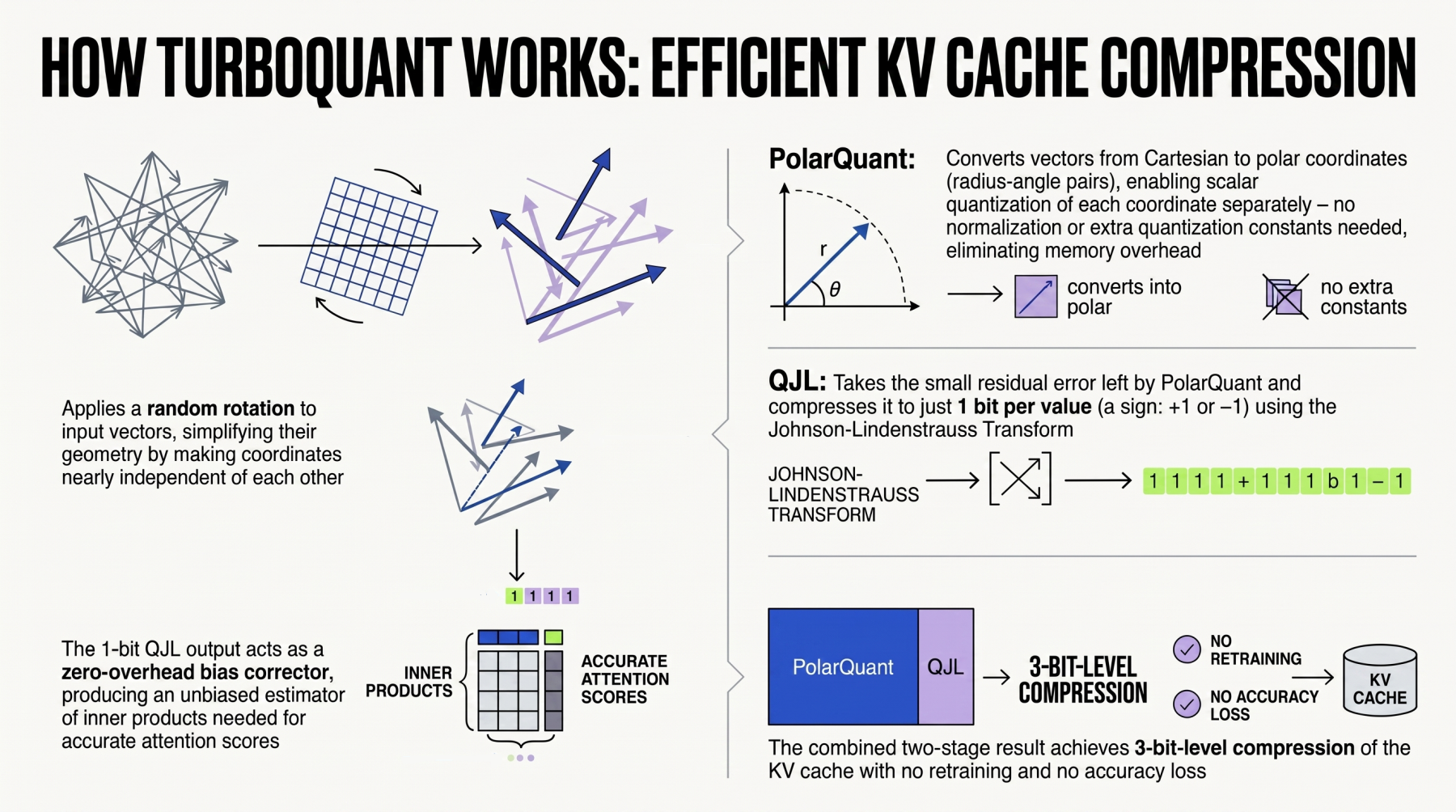
Large language models (LLMs) rely heavily on the key-value (KV) cache to speed up inference, but this cache can consume enormous amounts of memory, especially in systems like retrieval-augmented generation (RAG) pipelines. Google’s TurboQuant is a powerful algorithmic suite and library designed to apply advanced quantization and compression to LLMs and vector search engines—making it an indispensable tool for reducing memory footprints without sacrificing accuracy. This step-by-step guide will walk you through effectively compressing the KV cache using TurboQuant, helping you deploy more efficient LLM applications.
What You Need
- A Python environment (3.8 or later) with pip installed
- A transformer-based LLM (e.g., Llama, GPT-style model) that you can load locally
- Basic familiarity with PyTorch or JAX (depending on your model framework)
- TurboQuant library installation (see Step 1)
- A sample dataset for testing (e.g., a few hundred prompts from a public benchmark)
- Sufficient GPU memory (at least 16 GB recommended for initial experiments)
Step-by-Step Guide
Step 1: Install TurboQuant
First, ensure you have a compatible environment. TurboQuant is available via the Google Research repository. Install it using pip:
pip install turboquantIf you prefer to build from source, clone the official GitHub repository and run pip install -e .. Verify the installation by importing the library in Python: import turboquant. No errors means you’re ready.
Step 2: Load Your Model and Tokenizer
Choose an LLM that you want to compress. For this example, we’ll use a Hugging Face transformer model. Load the model and tokenizer in evaluation mode:
from transformers import AutoModelForCausalLM, AutoTokenizer

model_name = "meta-llama/Llama-2-7b-chat-hf"
model = AutoModelForCausalLM.from_pretrained(model_name, torch_dtype="auto", device_map="auto")
tokenizer = AutoTokenizer.from_pretrained(model_name)
Set the model to evaluation mode to disable dropout and batch normalization layers: model.eval().
Step 3: Prepare the KV Cache Compression Configuration
TurboQuant offers several quantization schemes. For KV cache compression, you typically want to apply low-bit quantization (e.g., 4-bit or 8-bit) to the keys and values stored in the cache. Create a configuration dictionary:
config = {
    "kv_quantization": {
        "bit_width": 4,           # Number of bits per element
        "group_size": 128,         # How many elements share scaling factors
        "scheme": "symmetric",     # Quantization range: symmetric or asymmetric
        "percentile": 0.99         # Clipping percentile for calibration
    },
    "calibration_data": None       # Provide a small dataset for calibration
}
If you have a representative dataset (e.g., 128 samples from your domain), assign it to calibration_data. This helps TurboQuant find optimal scaling factors.
Step 4: Apply TurboQuant to Your Model
Now, wrap the model with TurboQuant’s compression engine. This will replace the default KV cache implementation with a compressed version:
from turboquant import compress_model

compressed_model = compress_model(model, config, tokenizer=tokenizer)
Behind the scenes, the library instruments the attention layers to quantize keys and values on-the-fly. No manual code changes are needed.
Step 5: Test Inference with Compressed KV Cache
Run a few inference passes to verify the compression works and measure the memory savings. For example:
import torch

input_text = "Explain the principles of quantum computing."
inputs = tokenizer(input_text, return_tensors="pt").to("cuda")

with torch.no_grad():
    outputs = compressed_model.generate(
        **inputs,
        max_new_tokens=200,
        use_cache=True
    )

generated = tokenizer.decode(outputs[0], skip_special_tokens=True)
print(generated)
Monitor GPU memory usage with nvidia-smi before and after compression. You should observe a significant reduction (e.g., 2–4×) in the cache memory footprint.
Step 6: Evaluate Accuracy and Tune Parameters
Compression can introduce slight degradation. Evaluate on a benchmark (e.g., MMLU or a custom set) to ensure quality remains acceptable. If perplexity or task accuracy drops too much, adjust the configuration:
- Increase bit width from 4 to 8.
- Reduce group size to 64 for finer granularity.
- Use asymmetric quantization when the data distribution is not centered around zero.
- Provide a larger calibration dataset.
Re-apply the compression with new parameters and repeat evaluation until you strike the right balance between compression and quality.
Step 7: Deploy in a RAG Pipeline
For vector search engines used in RAG, TurboQuant also compresses the embeddings. After you are satisfied with the KV cache compression, integrate the compressed model into your RAG system. The saved memory allows you to handle larger contexts or serve more concurrent requests. Replace the original model with the compressed one and ensure the retrieval mechanism still functions correctly.
Tips for Success
- Always calibrate on representative data: The quality of compression heavily depends on the calibration set. Use data similar to your expected inference inputs.
- Monitor the trade-off: Start with 8-bit quantization—it often gives near-lossless results. Drop to 4-bit only if memory is critical and you can tolerate minor accuracy loss.
- Combine with other optimizations: TurboQuant pairs well with weight quantization and pruning. Apply them together for maximum efficiency.
- Test on a single layer first: If you encounter issues, compress only one attention layer to debug the pipeline before full deployment.
- Use mixed precision: Keep the rest of the model in FP16 or BF16 while compressing only the KV cache. This maintains speed while saving memory.
- Stay updated: TurboQuant is actively developed. Check the official repository for new compression schemes or bug fixes.
Conclusion
By following these steps, you can effectively compress the KV cache of your LLM using TurboQuant, drastically reducing GPU memory usage without rewriting your entire codebase. This is especially valuable for RAG systems where long contexts and high throughput are essential. Experiment with the quantization parameters and calibration data to find the sweet spot for your use case. With TurboQuant, efficient LLM inference is now within reach.