Introduction
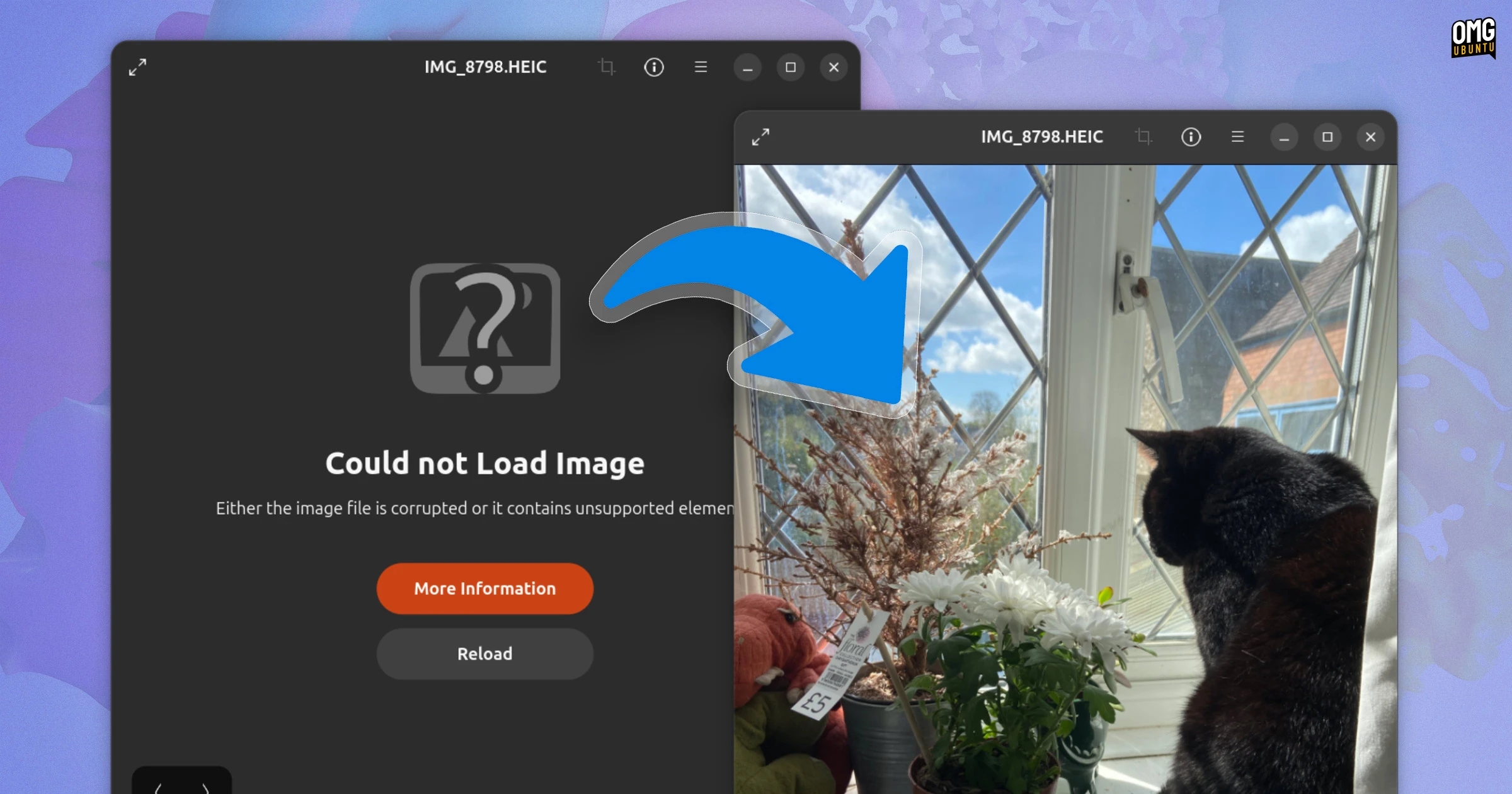
If you're an Ubuntu 26.04 LTS user and have recently connected your iPhone or Android smartphone to transfer photos, you may have encountered a frustrating error: when you try to open HEIC images in the default Image Viewer, it displays the message "Could not load image". This issue is not a random bug—it's an intentional change by the Ubuntu team. However, the fix is straightforward once you understand what's happening behind the scenes.

What Are HEIC Files?
HEIC (High Efficiency Image Container) is a modern image format that uses H.265/HEVC compression to store high-quality photos at about half the file size of older formats like JPEG. It's a variant of the HEIF (High Efficiency Image File Format) standard. Modern smartphones, especially iPhones and many Android devices, capture images in HEIC by default because it saves storage space without sacrificing quality.
Why Ubuntu 26.04 Dropped Support for HEIC
In previous Ubuntu releases, a decoder library for HEIC images was included by default. However, for Ubuntu 26.04 LTS, the developers made a deliberate decision to no longer preinstall this library. More precisely, they tweaked the dependency chains so that the decoder is no longer automatically pulled in when you install the Image Viewer or other standard photo applications. The reason behind this change is rooted in licensing concerns: H.265/HEVC is covered by patents, and including a decoder by default could pose legal risks for the distribution. As a result, the decoder has been relegated to the universe repository, which means you must manually install it if you need it.
The Simple Fix: Install the Missing Decoder
Resolving the issue requires installing a single package from the Ubuntu repositories. Follow these steps:
- Open a terminal by pressing Ctrl+Alt+T.
- Update your package list:
sudo apt update - Install the HEIC decoder package:
sudo apt install libheif-examples
This package contains the libheif library and command-line tools for decoding HEIC images. Once installed, the Image Viewer (and other applications like GIMP or Eye of GNOME) should be able to open HEIC files without errors.
Alternative: Installing via Synaptic or Software Center
If you prefer a graphical interface, you can use Synaptic Package Manager or the Ubuntu Software Center. Search for libheif-examples and install it. After installation, restart your Image Viewer to apply the change.
Verifying That It Works
After installing the decoder, try opening a HEIC file again. If you still see the error, ensure you've reopened the Image Viewer completely. In very rare cases, you may need to restart your login session or reboot the system for the library to be fully integrated.
Additional Tips for Working with HEIC
- Convert HEIC to other formats: If you prefer not to rely on the decoder, you can convert your HEIC images to JPEG or PNG using tools like heif-convert (included in the libheif-examples package) or online converters.
- Transfer photos without conversion: The libheif library also allows you to copy HEIC files directly from your phone—after installing the decoder, file managers like Nautilus will handle them natively.
- Check for updates: Future updates to Ubuntu may change the availability of the decoder, so keep your system updated with
sudo apt upgrade.
Conclusion
The "Could not load image" error in Ubuntu 26.04 LTS is not a sign of a broken system—it's a licensing-driven choice that leaves the HEIC decoder out of the default installation. By manually installing the libheif-examples package, you can restore full support for modern smartphone photos. This quick fix ensures you can view and manage your images without hassle, keeping your workflow smooth and efficient.
For more Ubuntu troubleshooting guides, check out our other articles on photo management and media format issues.